




Rollambia Mobile Application
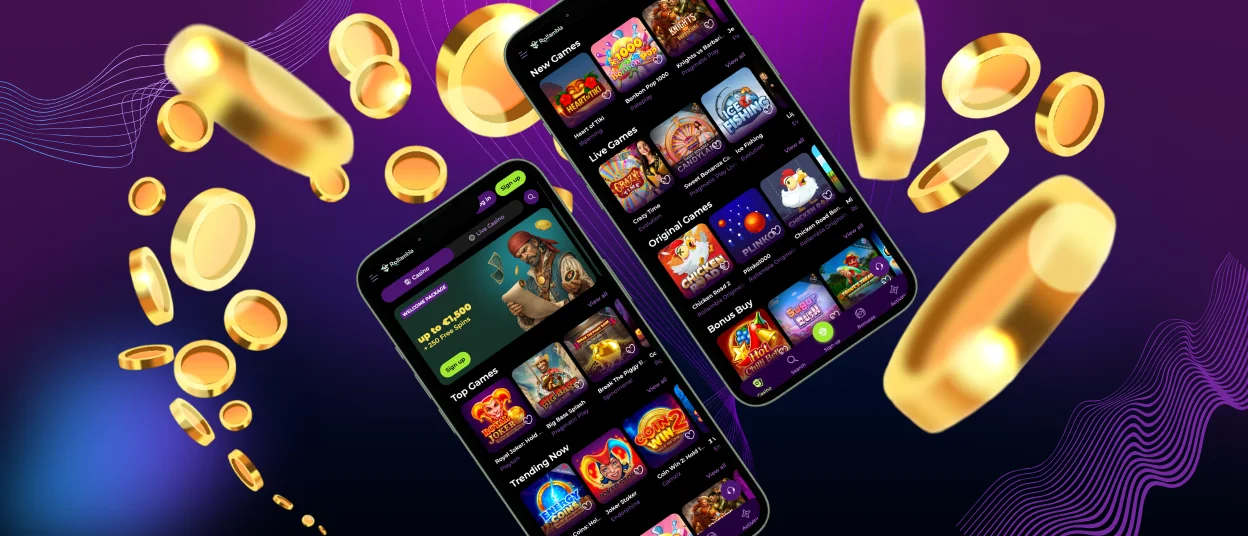
The Rollambia app is like carrying around a mini-casino in your pocket. With the app’s mobile-specific features, fast loading times, and optimized performance, you can play whenever you want. Play your favorite slot machines, live dealer games, or table games with lightning speed and ease on the Roll Ambia app.



Advantages of the Rollambia Application
The Rollambia app has some neat features that make playing games on the go more fun than on a desktop or laptop. Built specifically for mobile devices, the application outperforms the web version in terms of speed and data consumption.
Even on smaller screens, the optimized interface automatically adjusts to fit your needs, making navigation a breeze. When compared to using a web browser, the overall user experience is smoother, graphics load faster, and transactions complete quicker.
| Feature | Mobile App | PC Version |
| Loading Speed | Extremely fast | Fast |
| Data Consumption | Reduced | Higher |
| Access with one tap | Yes | Requires a browser |
Also, the app keeps you logged in automatically, which saves you time every time you open it. You can get push notifications about new deals, bonuses, and important account updates without having to check your account all the time.
How to Play Roll Ambia on iPhone and iPad
It is easy to install the Rollambia app on iOS devices and you do not need to download it from the App Store. The Rollambia casino uses Progressive Web App (PWA) technology that works perfectly on all Apple devices.
Step-by-Step Installation Guide for iOS
- On an iOS device, launch Safari to access the Rollambia website.
- Find the casino application icon in the main menu of the website after the page fully loads.
- Press the Share button (the square with the upward arrow) at the bottom of your screen.
- Scroll down to the menu that appears and select “Add to Home Screen.”
- The app’s name is customizable, but it’s best to stick with the default “Rollambia” for simplicity’s sake.
- Press “Add” in the top right corner to complete the installation.
The Rollambia icon will appear on your home screen. Tapping it, the application will open in full-screen mode, offering a gaming experience identical to a native application.
Downloading and Using the App on Android
Android users have the flexibility to install the Roll Ambia application in two different ways, depending on their preferences.
Using the Chrome browser is the easiest way.
- Open Chrome on your device and visit the Rollambia website.
- Click the three dots in the top right corner of the screen.
- From the menu that appears, select “Add to home screen.”
- To confirm, press “Add.” The icon will appear on your phone’s home screen.
You can also create a shortcut from the application drawer.
- To open the application drawer, swipe up from the bottom of the home screen.
- Tap and hold the app’s icon to add it.
- Drag the icon to the desired spot on the home screen and release it.
- The app will remain there for instant access anytime.
Use live chat or email to communicate with the customer support team if you have any questions regarding the installation process or the app verification process.
Security and Protection in the Application
The Roll Ambia application incorporates advanced security systems to protect your personal and financial data. All data sent and received between your device and our servers is securely encrypted using 256-bit SSL technology.
Multiple layers of verification protect deposits and withdrawals. The system automatically scans for any suspicious activity in every transaction and notifies you immediately if something unusual happens in your account.
The International Data Protection Authority sets the rules for how your personal information is stored on secure servers. The application does not store sensitive payment information locally on your device, which reduces the risk of loss or theft in the event that the device is lost or stolen.
Rollambia from PC or Mac
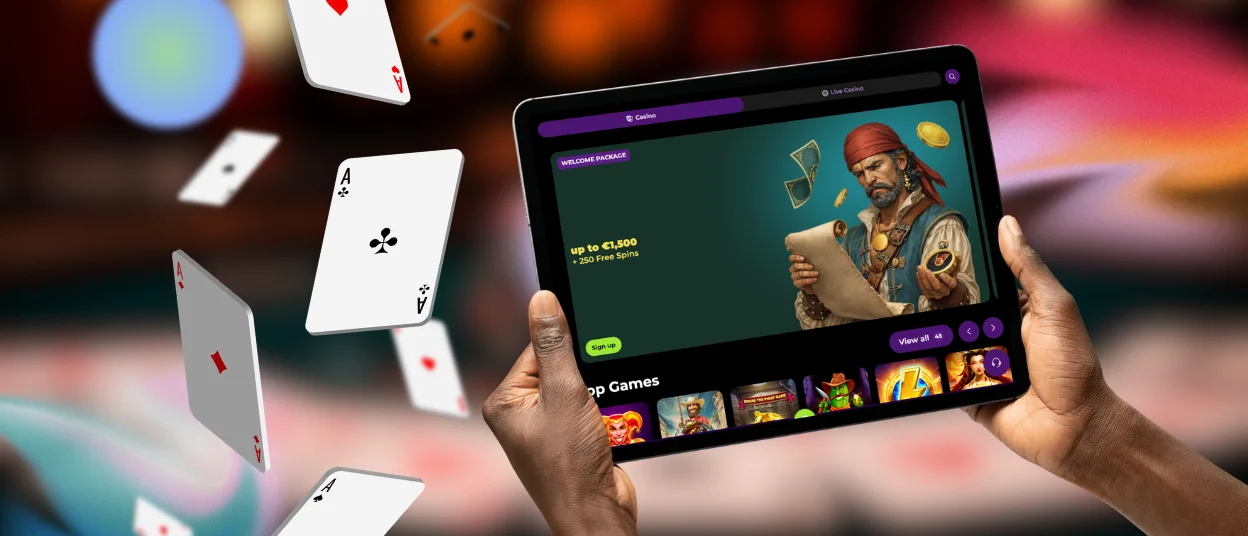
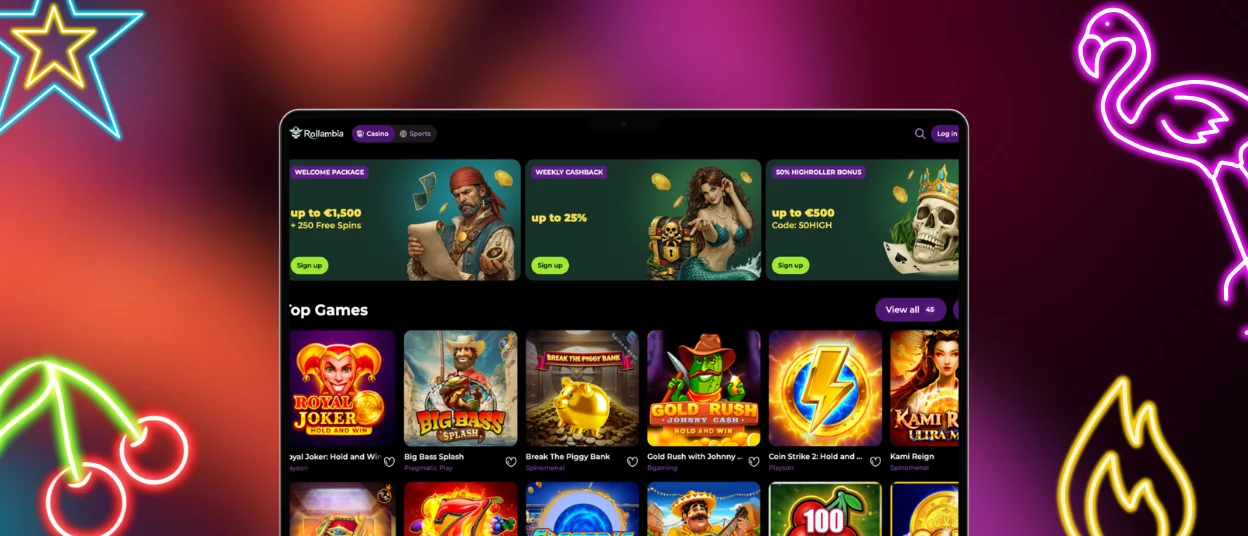
Although the Rollambia app is built for mobile casino devices, you can have the same experience on your computer. You can use the platform on Windows and Mac computers via a web browser.
- Open Chrome or Safari and go to the Rollambia website to reach it immediately from your desktop.
- In Chrome, click the three-dots icon in the top right corner and select “Save and share” > “Create shortcut.”
- Make sure to select “Open as window” to have a standalone application.
On Mac with Safari, the process is similar to iOS. Use the “File” menu > “Add to Dock” for quick access. The desktop version offers a larger screen for better viewing of live casino games and more space for multitasking.
Frequently Asked Questions
What should I do if the application keeps freezing?
It is recommended that you begin by restarting your device if you are experiencing stability issues with the Rollambia app. The temporary memory is cleared out, which allows for the resolution of a great deal of issues.
Are my deposits safe when using the mobile application?
The security of deposits made through the Rollambia app is comparable to that of deposits made from a computer desktop. Similar to the desktop version, the mobile application makes use of the same encryption and security infrastructure.
Why should I use the official app instead of the website?
When compared to a web browser, the official Rollambia app offers superior performance, which is something that is not possible with a browser. Transactions are completed more quickly, the overall experience is more streamlined, and online slots load more quickly.


